
Overheating is a common yet critical issue that can significantly degrade a laptop’s performance. Laptops cram a lot of powerful hardware into a very tiny space. When things get too hot, your laptop will slow down to protect itself. Because high-performance hardware is enclosed in a highly compact chassis, proper thermal management is essential. When dust accumulates or airflow is restricted, the system’s internal temperatures spike, leading to thermal throttling, sluggish performance, and unexpected shutdowns.
Implementing proper maintenance and adjusting your operational habits can effectively mitigate these thermal issues and restore your laptop’s efficiency.
1. Clear the Airflow
Laptops cool themselves by pulling in cool air from the bottom and blowing hot air out the sides or back. If those vents are blocked, heat builds up fast.
- Get off the bed or couch: Soft surfaces like blankets, pillows, or your lap mold to the bottom of the laptop and block the air vents. Always use a flat, hard surface like a desk or a table.
- Prop it up: Try propping up the back of your laptop by an inch using a small book, a bottle cap, or a dedicated laptop stand. This creates a larger pocket of air underneath it, drastically improving circulation.
- Buy a cooling pad: If you use your laptop for heavy tasks like gaming or video editing, a laptop cooling pad with built-in fans can give it a constant stream of fresh air.
2. Clean Out the Dust
Over time, your laptop’s internal fans act like tiny vacuums, sucking in dust, pet hair, and lint. This creates a thick blanket over the cooling components.
- Use compressed air: Buy a can of compressed air (available at most electronics stores). Shut down your laptop, unplug it, and blast short bursts of air into the intake and exhaust vents.
3. Manage Your Software Load
Sometimes the issue isn’t hardware; it’s that your laptop is being forced to work too hard.
- Close heavy background apps: Programs you aren’t even looking at might be hogging your processor. On Windows, press
Ctrl + Shift + Esc(Task Manager) or on a Mac, open Activity Monitor to see what is draining your resources, and close them. - Lower your performance settings: Both Windows and macOS have battery/power saver modes. Lowering your settings from “High Performance” to “Balanced” or “Power Saver” limits how hard the processor pushes itself, keeping it cooler.
- Keep tabs in check: Running too many browser tabs at the same time forces your RAM and processor to work constantly. Close what you aren’t using.
4. The Advanced Fix
If your laptop is more than 3 to 4 years old and still runs hot after cleaning the dust, the thermal paste might be dried up.
What is thermal paste? It is a special conductive gel that sits between your laptop’s processor and its metal cooling pipes. It helps transfer heat away from the chip.
Over the years, this paste turns into a dry, crusty chalk that no longer transfers heat well. If you are tech-savvy, you can open the laptop, wipe away the old paste with rubbing alcohol, and apply a fresh pea-sized drop of new thermal paste. If that sounds intimidating, any local computer repair shop can do it for you quickly.
5. Power Management Hack
By default, Windows allows your CPU to push itself to 100% capacity, triggering “Turbo Boost” which spikes temperatures instantly.
Limiting this slightly drops temperatures dramatically with almost zero noticeable performance loss in daily tasks:
- Open your Windows Search bar, type Edit Power Plan, and click it.
- Click Change advanced power settings.
- Scroll down and expand Processor power management.
- Expand Maximum processor state.
- Change both “On battery” and “Plugged in” from 100% to 99% or 95%.
6. Manufacturer Diagnostics (Dell, HP)
- Update the BIOS: Dell and HP explicitly note that outdated system firmware often handles fan speed profiles poorly. Updating your BIOS via the manufacturer’s support app (like Dell SupportAssist or HP Support Assistant) can optimize how aggressively your fans spin up when it gets warm.
- Hardware Diagnostics Test: If your laptop shuts down abruptly, restart it and immediately tap F12 (Dell) or F2 (HP) to enter the boot menu. Run the built-in hardware diagnostics to check if a cooling fan has actually suffered a mechanical failure.
READ MORE FROM BEST PRODUCTS

Valve launches Steam Machine gaming PC
Valve has officially announced the launch details, pricing, and reservation plans for its new Steam…

samsung galaxy s26 ultra vs google pixel 10 pro xl
Both the Samsung Galaxy S26 Ultra and the Google Pixel 10 Pro XL are high-end…

What You Need to Know About the New Google Home Speaker
Google is launching a new smart speaker called the Google Home Speaker, and it is…

Galaxy Book6 Edge Now Available: What to Know
Samsung has released its new laptop, the Galaxy Book6 Edge, in the United States. It…
Samsung Galaxy Z Fold 8: Release Date, Leaks, Features
Recent leaks give us a clear picture of what to expect from Samsung’s next big…
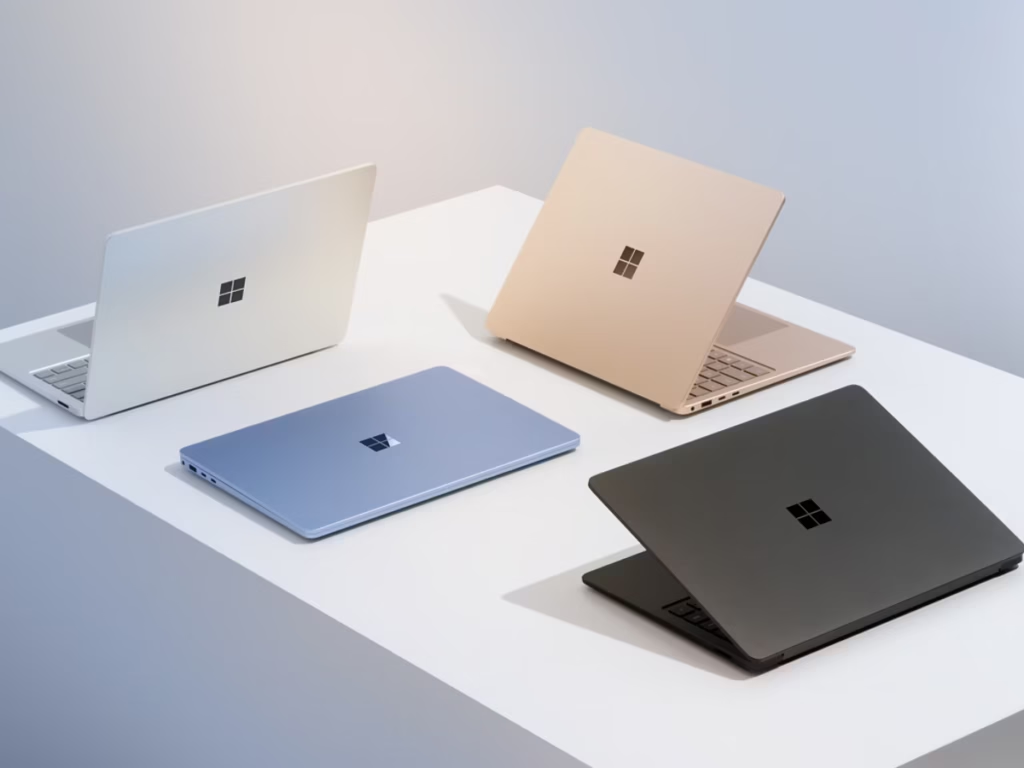
Surface Laptop 5: Specs and Features
Microsoft Surface Laptop 5 focuses on reliable everyday performance and clean aesthetics. The physical build…
How to connect airpods 4 to laptop
Connecting your AirPods 4 to a laptop is a pretty straightforward process, whether you’re using…

You Can Now Message Friends Directly on YouTube
YouTube is officially expanding its in-app direct messaging feature to the United States and other…

Vivo X Fold 6 Revealed
The latest leaks and official teasers for the Vivo X Fold 6 give a pretty…
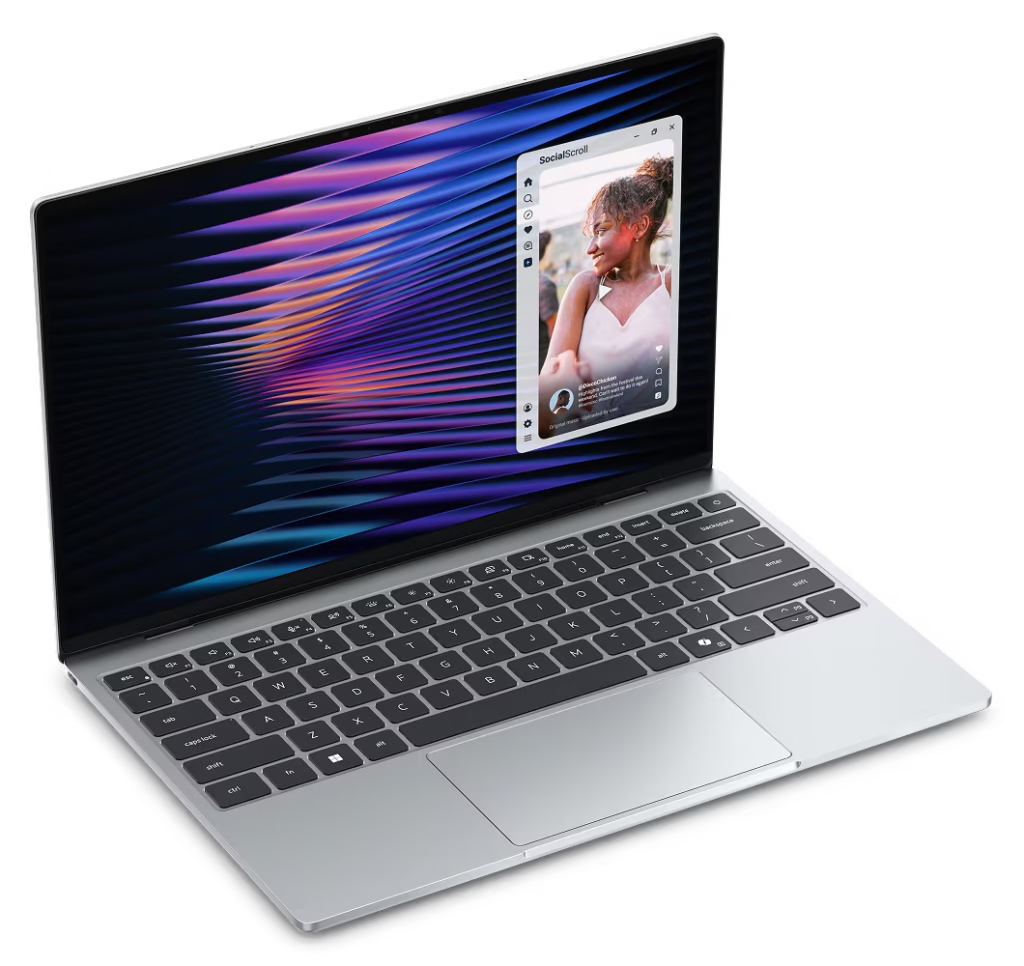
New Dell XPS 13
For a long time, the unwritten rule of buying a laptop was that a lower…

ASUS Laptop Lineup Explained
The brand ASUS makes everything from budget-friendly devices to high-end machines. Because they organize their…

Best Laptop Brands: 2026 Review
If you are looking for the best laptop brands, here is a review of the…

You Can Finally Change Your Gmail Username
If you created your Gmail account years ago, you might be stuck with a username…

Vivo X300 Ultra Makes Its Grand Debut
Vivo has officially introduced its new flagship, the Vivo X300 Ultra, a phone built specifically…

Samsung Galaxy AI Features
The Samsung Galaxy S26 series introduces a suite of samsung galaxy ai features designed to…

New MacBook Pro Review: The M5 Pro and M5 Max
New MacBook Pro Review Apple recently updated the MacBook Pro lineup, introducing the M5 Pro…

AirPods Max 2: Features and Specifications
Apple has officially introduced the second generation of its over-ear headphones, the AirPods Max 2….

Apple’s new Studio Display and Studio Display XDR
Apple expanded its desktop lineup with two new monitors: the updated Studio Display and the…

Apple Introduces MacBook Neo
Apple has officially expanded its laptop lineup with the introduction of the MacBook Neo. Positioned…

Samsung galaxy s26 ultra vs s26+ vs s26
Samsung has officially introduced its latest flagship lineup, the Galaxy S26 series, comprising the Samsung…
Leave a Reply